Remux Doctor
Mac
Know what’s in every remux.
Fix it losslessly.
Remux Doctor reads your 4K Blu-ray remuxes and explains in plain English what is inside them: Dolby Vision, HDR, Atmos, subtitles. It checks each file against the target you choose, then fixes the differences without re-encoding the picture. For Mac.
Checking and your first three files are free · then a one-time unlock
- Video is never re-encoded
- Originals are kept
- Nothing leaves your Mac
What it does
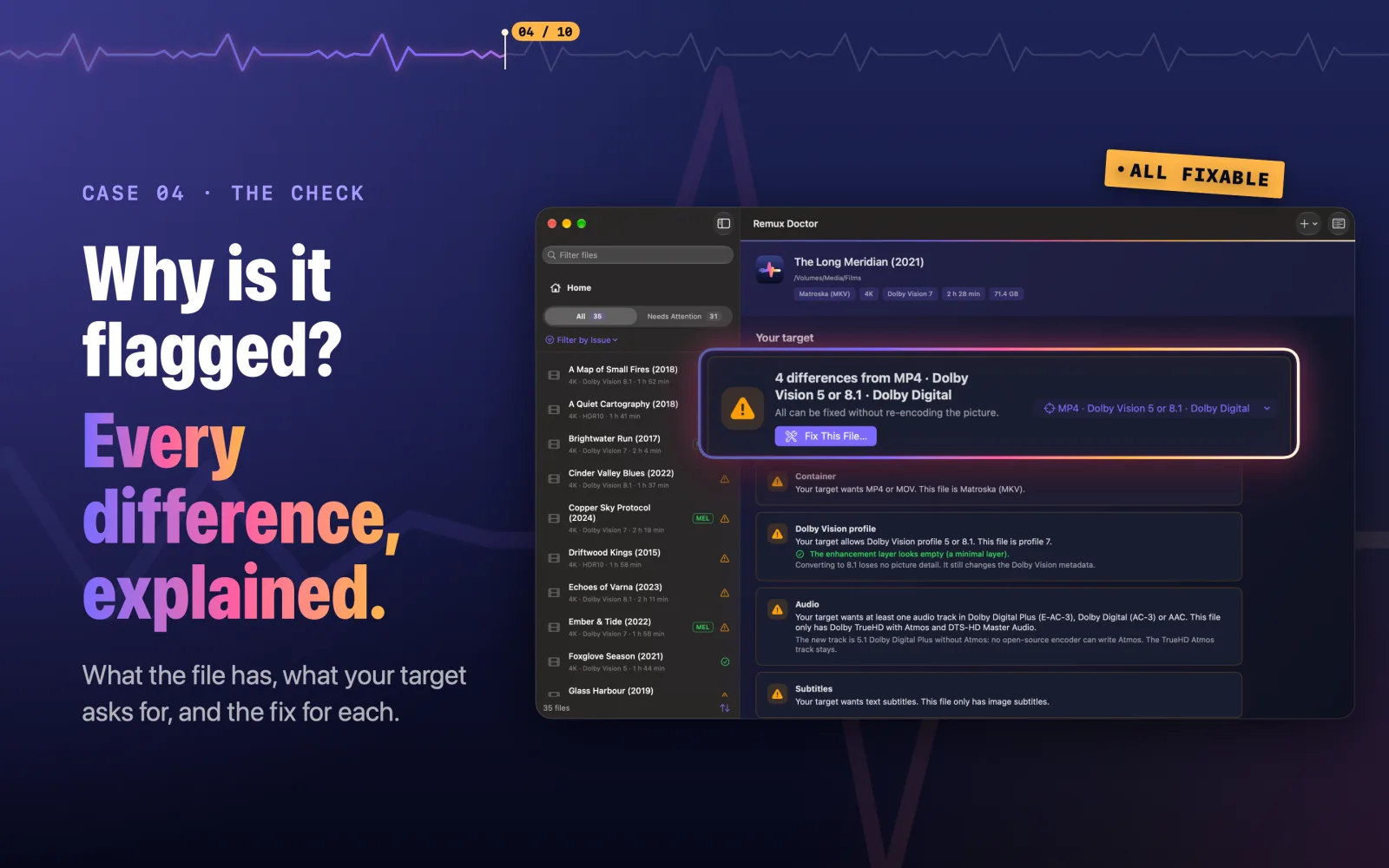
Plain English, not codes
Drop in files or a folder. Each one is explained in words: the Dolby Vision profile and enhancement layer, HDR format, audio and Atmos, subtitle formats. The raw details are one click away.
You choose the target
MKV or MP4, which Dolby Vision profiles you allow, which audio codecs, text or picture subtitles. Start from a suggestion and change anything. Every file is checked against it, and Remux Doctor makes no claims about how any device or player handles a file.
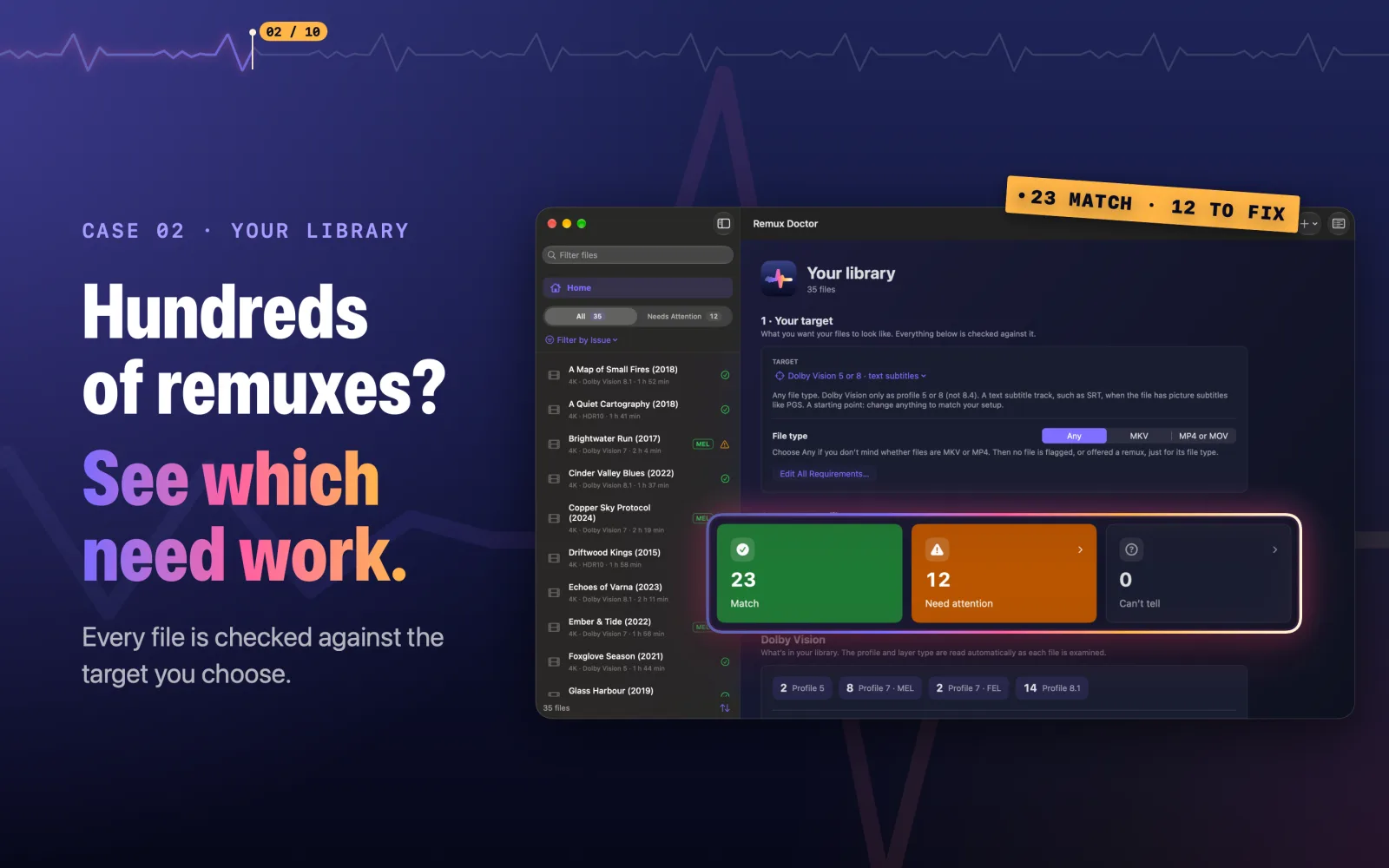
Your whole library at a glance
See how many files match, need attention or can’t be fully checked, with a breakdown of Dolby Vision profiles. Watch folders to examine new files as they arrive.
Know the enhancement layer first
Profile 7 files are sampled so you can see whether the layer is minimal or full before you convert. Full layers are left for you to review, never converted automatically.
Fixes that never re-encode the picture
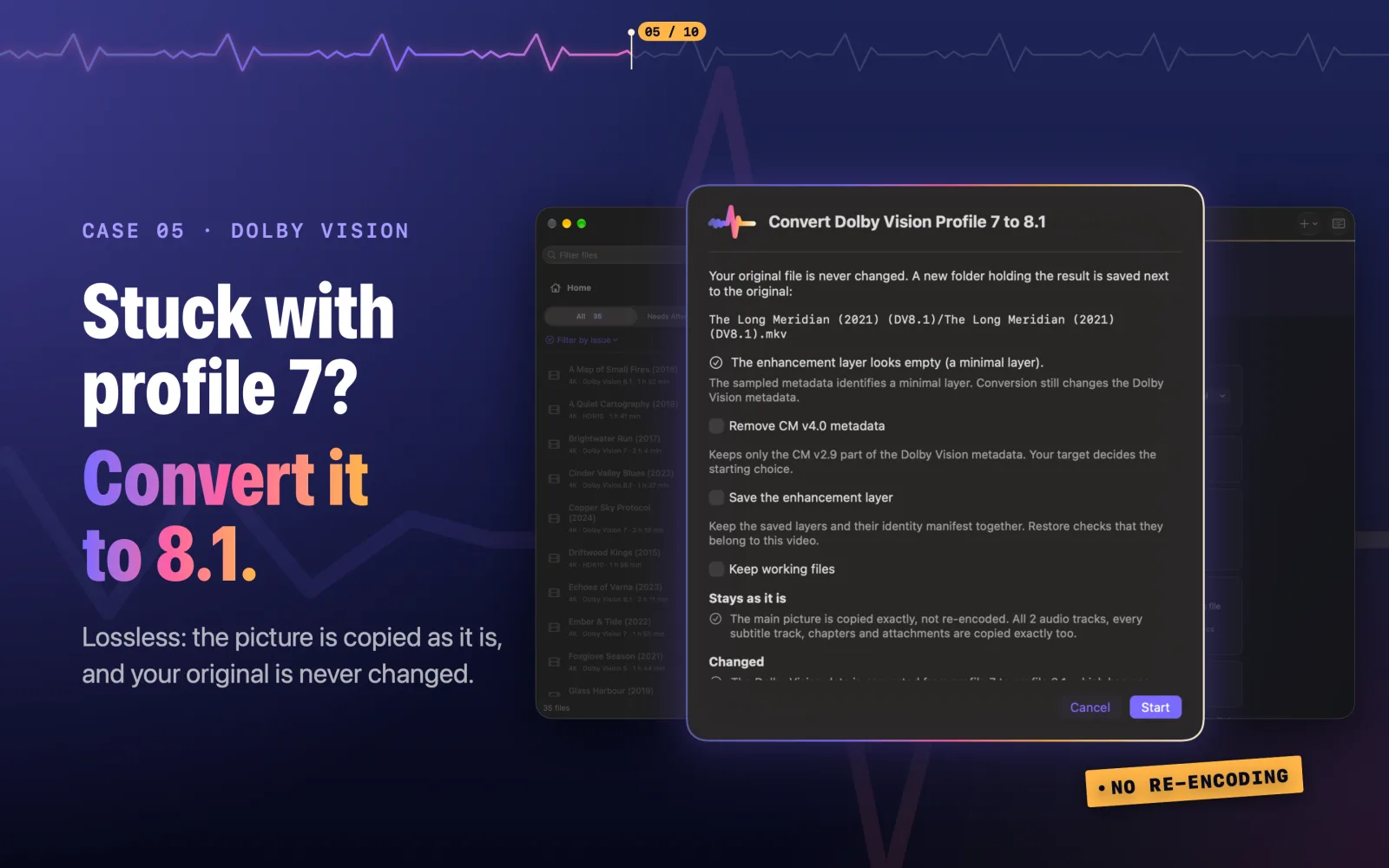
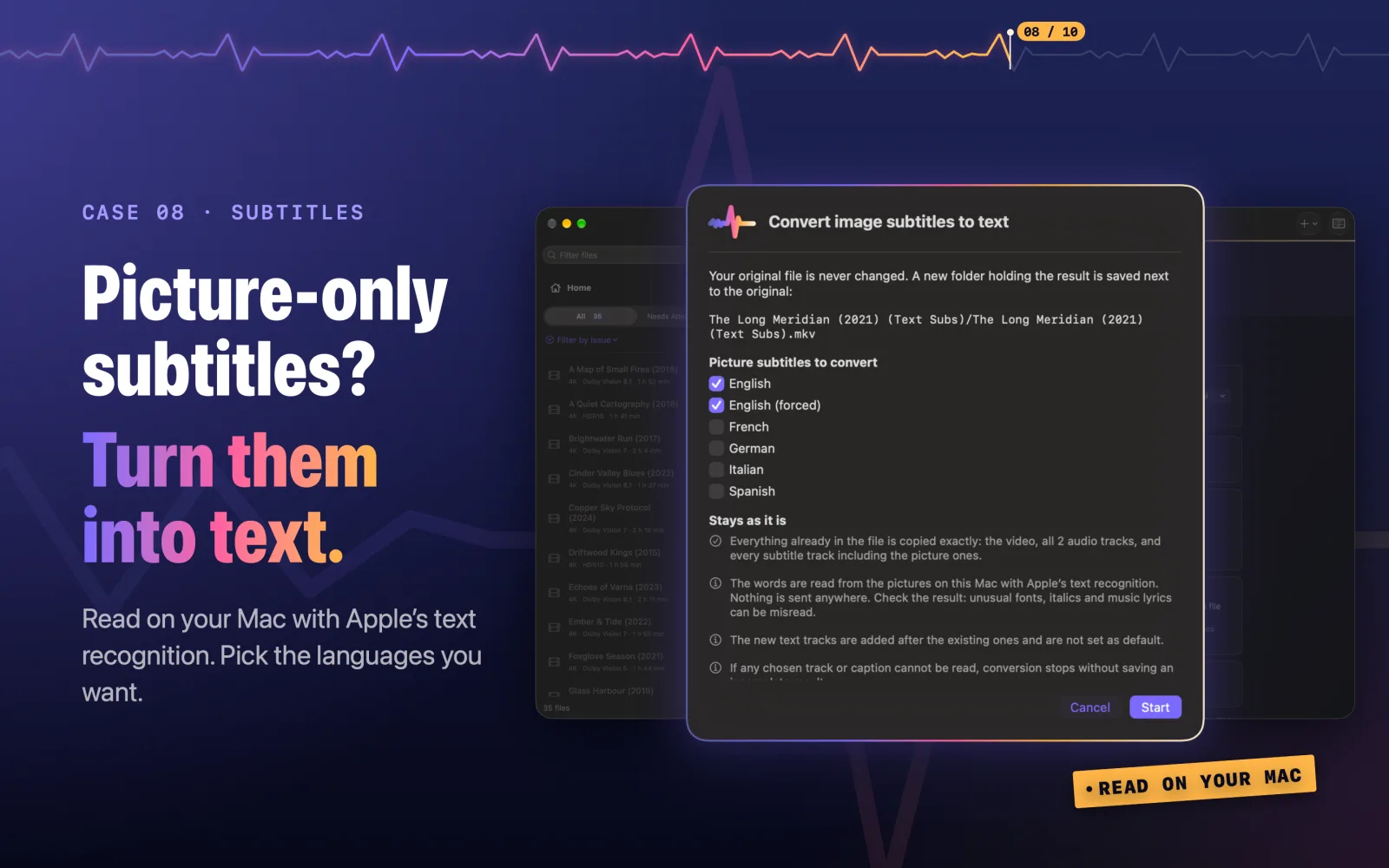
Convert Dolby Vision profile 7 to 8.1, remove CM v4.0 metadata, add a Dolby Digital Plus track, turn picture subtitles into text, or remux between MKV and MP4. The picture is always copied exactly.
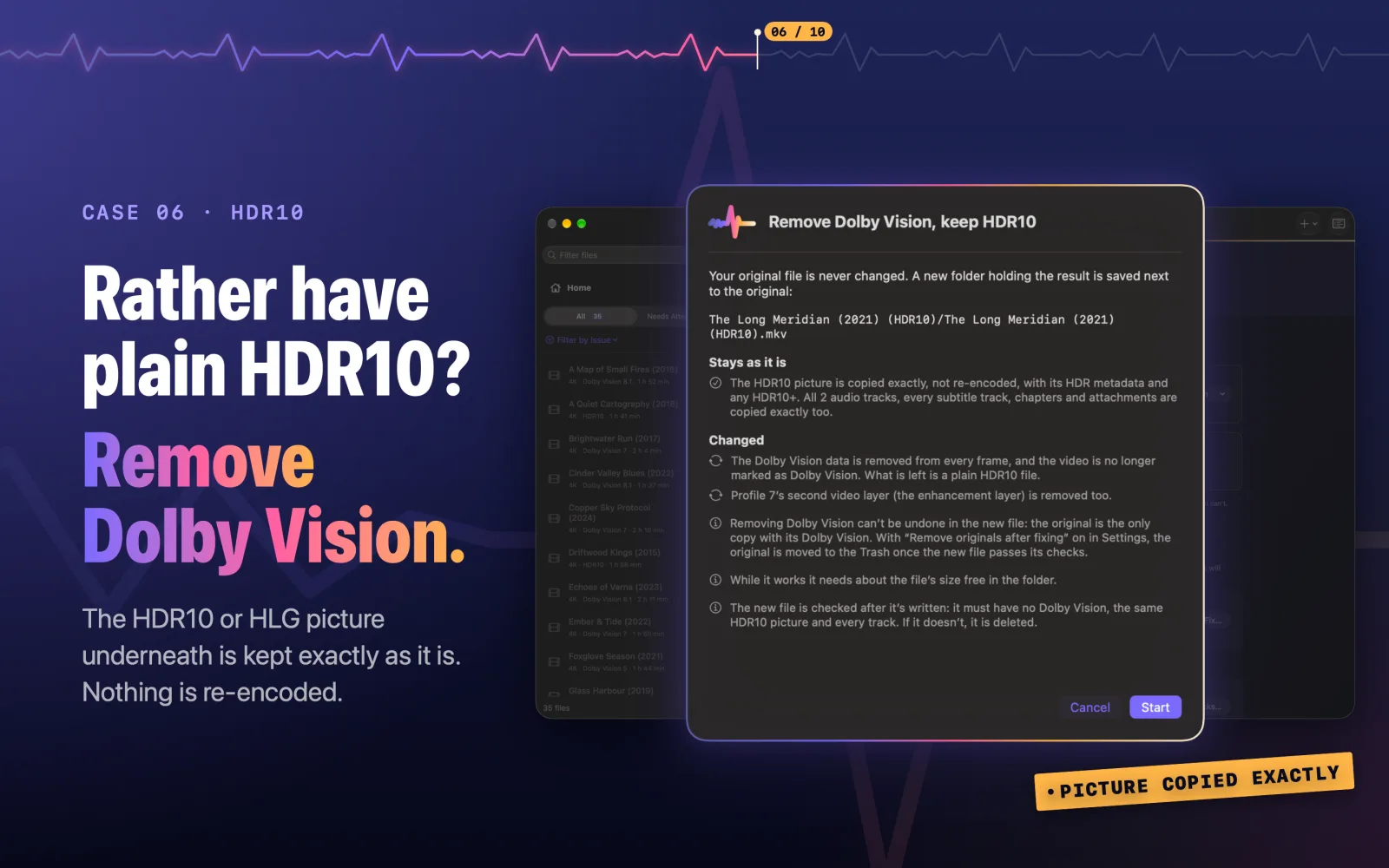
Remove Dolby Vision, keep HDR10
Rather have plain HDR10? Remux Doctor takes the Dolby Vision out and keeps the HDR10 or HLG picture underneath exactly as it is. A file with HDR10+ can also gain Dolby Vision 8.1 made from its own HDR10+ metadata.
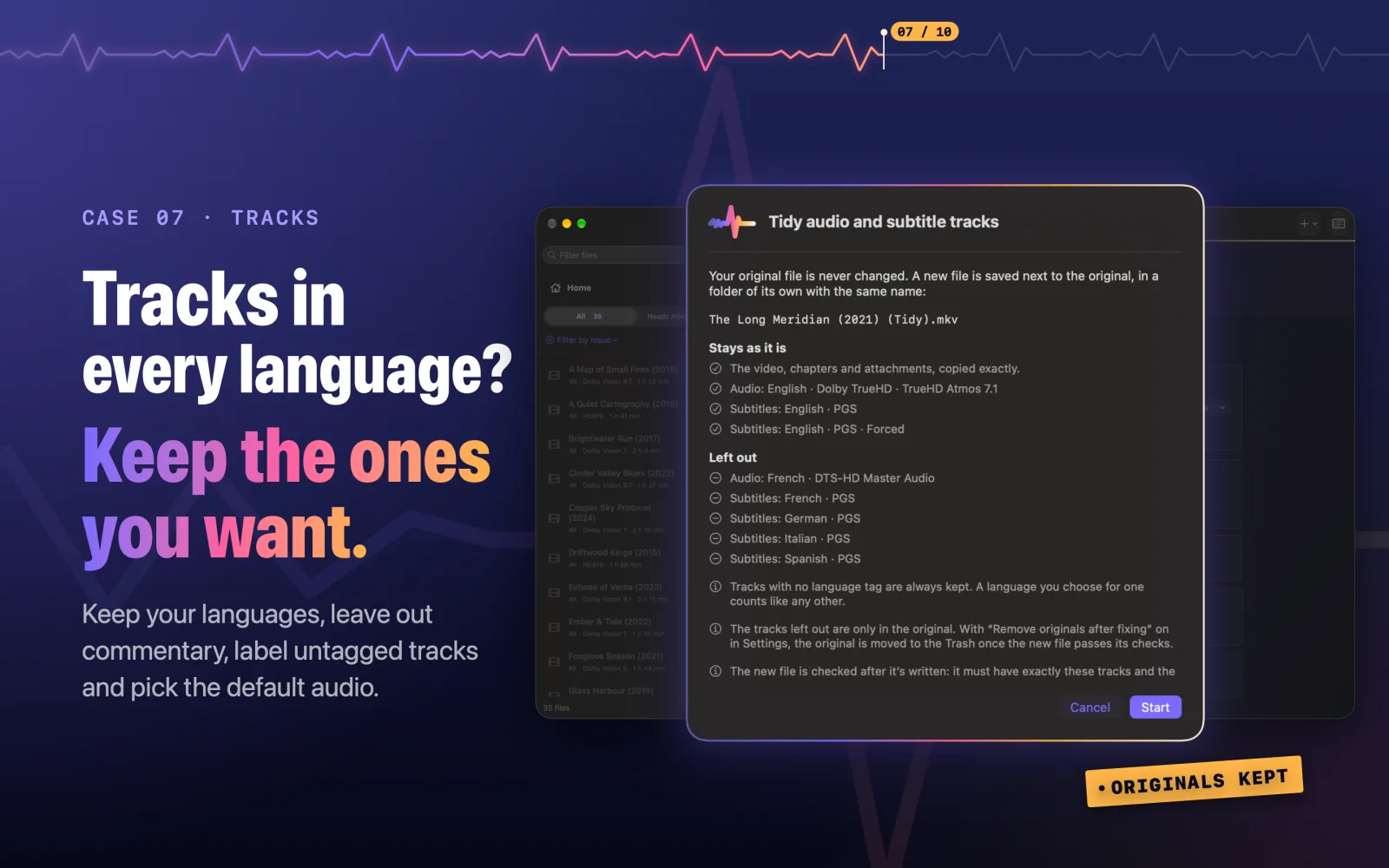
Tidy your tracks
Keep the audio and subtitle languages you want, leave out commentary, label untagged tracks, choose the default audio and forced subtitles, and rename tracks. Add the DTS core of a DTS-HD track as its own track.
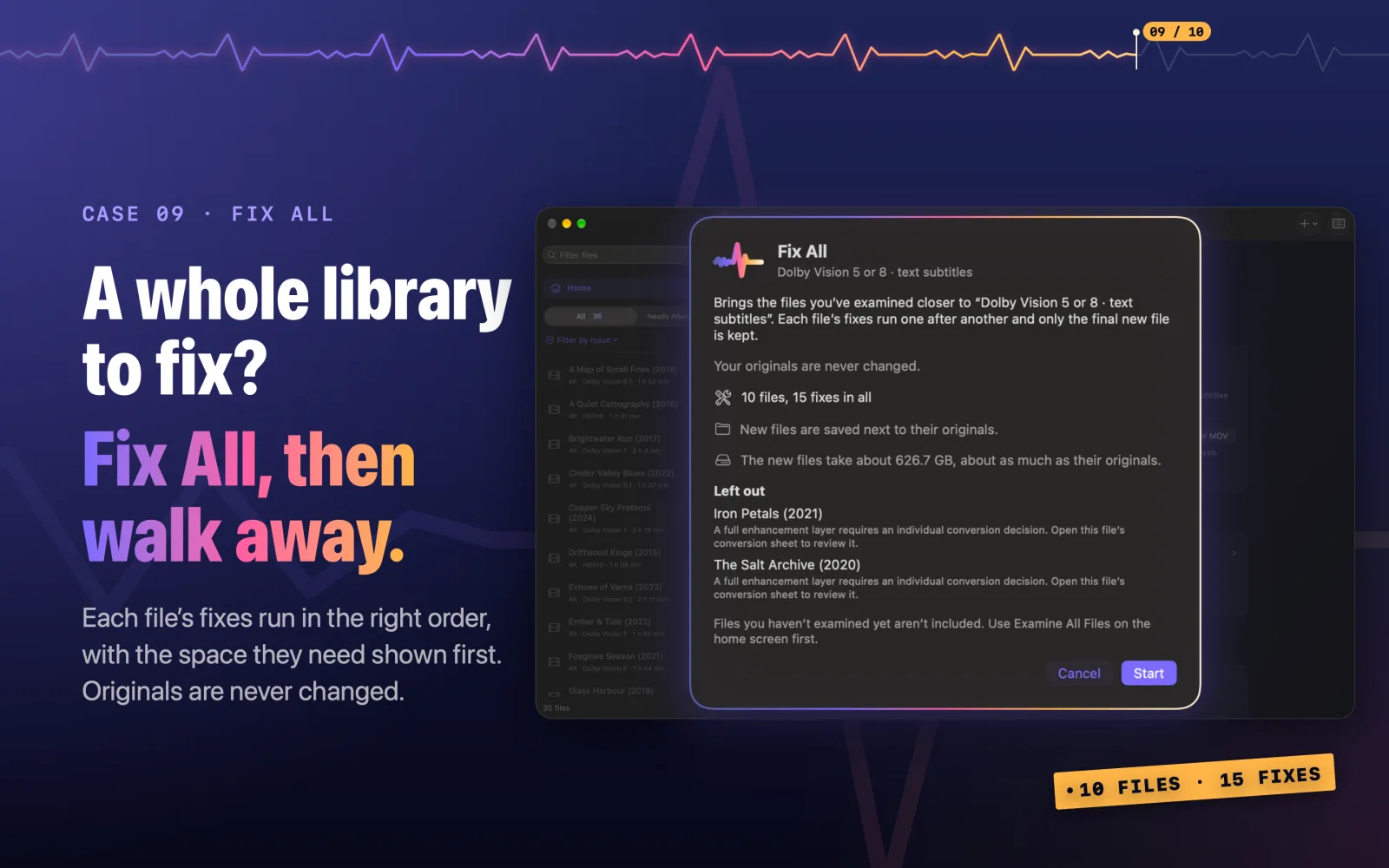
Fix All, safely
Each file’s fixes run in the right order, one file at a time, with the space they need shown first. Results are new files, checked before they’re kept, next to the originals or in a folder you choose. Your originals stay as they are unless you choose to move them to the Trash.
Works with your Mac
Shortcuts actions to check, add and fix files, usable as Finder Quick Actions. Quick Look shows a file’s summary and check. Watch folders, and new downloads are examined, or fixed, as they arrive.
See it in action
Free to check, three files free. Pay once for the rest.
Free
- Examining files and plain-English summaries
- Targets and checks for your whole library
- Dolby Vision breakdown and enhancement-layer sampling
- Fixing your first three files, one at a time
One-time unlock
- Every fix on every file, none of which re-encodes the picture
- Fix All for your whole library
- Watched folders that fix automatically
- Fix File in Shortcuts
A single in-app purchase with Family Sharing. No subscription, and you can restore it on any Mac.
Coming soon to the Mac App StoreWhat it can’t do
Remux Doctor never re-encodes video, so it can’t change a picture’s resolution, turn SDR into HDR, or remove Dolby Vision from profile 5 (which has no HDR10 picture underneath). A new Dolby Digital Plus track can’t carry Atmos. Converting a full enhancement layer removes it for good, so those files are always left for you to review. It requires a Mac with Apple silicon.
Questions
Something else? See support or read the privacy policy.
Is Remux Doctor a subscription?
No. Examining and checking files is free, and so is fixing your first three files. One in-app purchase unlocks the rest, with Family Sharing, and you can restore it on any Mac.
Can I try a fix before buying?
Yes. Your first three files can be fixed free, one at a time from each file’s page, so you can check the results on your own setup. A file counts once, however many fixes it needs, and only when its new file is saved: a fix that fails or that you cancel doesn’t use one up. Fix All, fixing in watched folders and Fix File in Shortcuts need the purchase.
Will it change or delete my original files?
No. Every fix writes a new file, checked before it is kept. There is an optional setting, off by default, to move an original to the Trash after a verified fix. Nothing is ever permanently deleted.
Does it re-encode my video?
Never. The picture is copied exactly. Only new tracks are made: a Dolby Digital Plus track encoded from your lossless audio, or text subtitles read from picture subtitles. The original tracks stay.
Will the result play on my TV or player?
Remux Doctor makes no claims about how any device or player will handle a file. A target is your own choice of what you want your files to look like, and each check states facts about the file and that choice.
What is the difference between a minimal and a full enhancement layer?
Dolby Vision profile 7 files carry an extra layer. A minimal layer (MEL) holds no extra picture detail. A full layer (FEL) can. Converting to profile 8.1 removes the layer, so Remux Doctor samples it first and leaves full layers for you to decide on one by one. You can also save the layer and restore profile 7 later.
Which files does it read?
MKV, MP4, M4V, MOV, TS and M2TS.
Can I use it from Shortcuts or Finder?
Yes. The Shortcuts app has Check File, Check File Against Target, Add to Library, Fix File and Library Status. To use one from Finder, make a shortcut that receives files from Quick Actions and turn on Use as Quick Action; it then appears when you Control-click a video, under Quick Actions. Remux Doctor also adds Check with Remux Doctor to the Services menu, which opens the file in the app. Fix File needs the in-app purchase.
Does it work on Intel Macs?
No. Remux Doctor needs a Mac with Apple silicon and macOS 15 or later.
Guides & notes
- How to add Dolby Vision to an HDR10+ file, without re-encoding An HDR10+ file can gain Dolby Vision profile 8.1 made from its own HDR10+ metadata. Here’s how that works, what it is and isn’t, and how to do it on a Mac.
- How to remove Dolby Vision from an MKV and keep the HDR10 picture Why some people strip Dolby Vision out of a 4K remux, what’s left afterwards, which files it works on, and how to do it on a Mac without re-encoding.
- How to remove commentary tracks and unwanted languages from an MKV on a Mac A disc remux carries every audio and subtitle track on the disc. Here’s how to keep only the languages you want, drop the commentary, and set the default audio and forced subtitles, without re-encoding.
- How to add a Dolby Digital Plus track to a TrueHD remux, without losing the original Why you might want a Dolby Digital Plus (E-AC-3) track alongside lossless TrueHD or DTS-HD audio in a 4K remux, and how to add one on a Mac while keeping the original.
- How to convert Dolby Vision profile 7 to 8.1 on a Mac without re-encoding A lossless way to turn dual-layer Dolby Vision profile 7 remuxes into single-layer profile 8.1 on macOS, and when you shouldn’t.
- How to convert Blu-ray PGS subtitles to text on a Mac Blu-ray subtitles are pictures, not text. Here’s why that causes problems in a remux, and how to turn PGS subtitles into text subtitles on macOS.
- How to tell if a file is Dolby Vision profile 7 or 8, and whether it has a FEL or MEL What Dolby Vision profiles 7 and 8 mean, how to read them in MediaInfo, and how to find out whether a profile 7 remux has a full or minimal enhancement layer.
- Why I built Remux Doctor Physical media is having a moment, and owning your films in full quality is worth it. Making sense of the files shouldn’t take a dozen command-line tools and a forum thread, so I built a fast, native Mac app for it.